![emax-digital-logo-vertical-red-with-white-background-600x514.png]](https://knowledge.emax-digital.com/hs-fs/hubfs/emax-digital-logo-vertical-red-with-white-background-600x514.png?height=40&name=emax-digital-logo-vertical-red-with-white-background-600x514.png)
What are vendor codes?
Vendor codes are unique identifiers assigned to your vendor account(s) within Amazon. They help Amazon recognize which catalog content belongs to which vendor when you upload or update master data.
Without these codes, your product content cannot be properly matched or published.
How to find your vendor codes
Follow these steps inside Amazon Vendor Central:
1. Log in to your Vendor Central account
Go to Amazon Vendor Central and sign in with your vendor credentials.
2. Open the main navigation menu
Once you’re inside the dashboard, look for the top navigation bar or the main menu (usually on the left-hand side depending on your interface version).
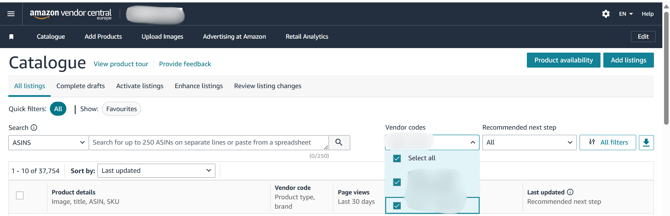
3. Go to “Catalogue”
From the dropdown menu, click on Catalogue.
This section contains all product and vendor-related data associated with your account.
4. Locate your vendor codes
Inside the Catalogue section, you will see a list of your vendors.
Here you can find all your vendor codes displayed clearly. These are the codes you need for pushing or mapping your master content to Amazon.